This guide installs the Swizzin web stack on Ubuntu 24.04. The same Swizzin install flow should also apply to Debian 12 when Swizzin lists the release as supported. It focuses on the base panel, nginx, and first service checks so the server is ready for the separate qBittorrent installation guide.
Official Swizzin References
Before installing, compare this guide with the official Swizzin website, the Swizzin Getting Started guide, the advanced setup options, and the Swizzin GitHub README for the current supported operating systems and install notes.
Requirements
- A clean Ubuntu 24.04 or Debian 12 server. This guide was tested on Ubuntu 24.04.
- Root access, or a sudo-capable account that can enter a full root login shell.
- A server snapshot or provider backup before running the installer.
- A hostname or server address you can use to open the Swizzin panel after installation.
- A strong Swizzin panel password prepared before running the install command.
Backup First
If your server is a VPS or VM with snapshot support, take a snapshot before installing Swizzin. If you are installing on bare metal, stop here and confirm you have a tested recovery path, such as a full-disk backup, rescue console access, and copies of important configuration. Swizzin changes packages, users, nginx configuration, systemd services, and files under /install, so bare-metal installs need extra caution before continuing.
Install Commands
Start from a full root login shell. Swizzin specifically recommends logging in as root, using su -, or using sudo -i. Avoid sudo -s because it may not load the full root environment. If you logged in directly as root, you are already in the right shell; otherwise run this command first.
sudo -iCreate a small notes directory for the installer copy used in this guide.
mkdir -p /root/swizzin-install-notesDownload the installer from Swizzin’s short installer URL.
curl -fsSL https://s5n.sh -o /root/swizzin-install-notes/swizzin-installer-s5n.shInspect the operating system checks before running it. This does not install anything; it only shows the relevant support checks inside the installer.
grep -nEi "noble|jammy|focal|bookworm|supported|VERSION_ID|lsb_release|os-release" /root/swizzin-install-notes/swizzin-installer-s5n.shInstall nginx and the Swizzin panel first. qBittorrent is installed in the next guide so each part can be verified separately. Use a lowercase username. Replace <strong-panel-secret> with your own strong password, and keep the single quotes around it if the password contains shell-special characters. For this command, choose a password that does not contain a single quote.
bash /root/swizzin-install-notes/swizzin-installer-s5n.sh \
  --user swizzinuser \
  --pass '<strong-panel-secret>' \
  --unattend nginx panel
The installer can print the panel username and password in the terminal output. Redact that line before sharing install logs publicly.
If the installer shows terminal-color warnings such as tput: unknown terminfo capability, continue watching the install instead of stopping immediately. Treat them as cosmetic unless the installer exits with an error. Some installs can also show fancyindex file warnings while nginx still finishes successfully; the verification commands below are the checks that matter.
If the installer tells you to reboot, run the reboot command, reconnect to the server, and return to a root shell before continuing.
rebootsudo -iRefresh the shell environment so the box command is available in the current session.
. ~/.bashrcThe box command is added to root’s shell path by Swizzin. If box list says the command is not found, make sure you are in an interactive root shell, then run . ~/.bashrc again or reconnect to the server.
Verify The Service
Confirm nginx is active.
systemctl is-active nginxConfirm the nginx configuration is valid. With the default self-signed certificate, nginx may warn that SSL stapling is ignored because the issuer certificate is not available. That warning is expected before a trusted certificate is installed; the important lines are that the syntax is okay and the test is successful.
nginx -tConfirm the panel responds over HTTPS. Replace <server-hostname-or-ip> with the hostname or address you use to reach the server. A fresh panel commonly returns a redirect to /login, which is a good result.
curl -k -I https://<server-hostname-or-ip>/Confirm Swizzin created the lock files for nginx and panel.
ls -la /install/.nginx.lock /install/.panel.lockConfirm the Swizzin management command is available.
box listOpen The Panel In A Browser
After the command-line checks pass, open the panel URL in your browser:
https://<server-hostname-or-ip>/
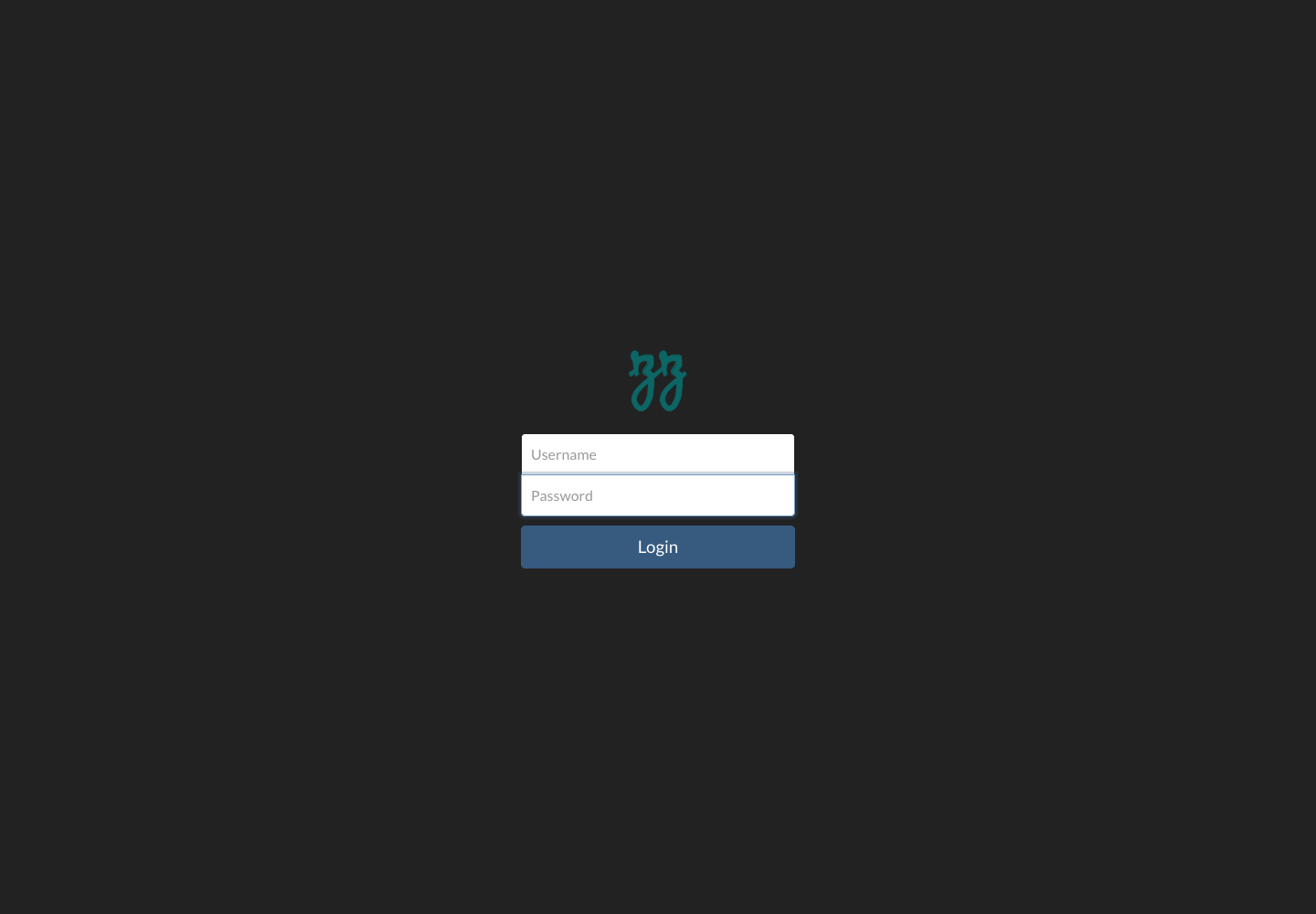
You should see the Swizzin login page. Log in with the panel username and password chosen during the install. After login, confirm the dashboard loads before continuing to the qBittorrent installation guide.
Optional: Install A Trusted Certificate
A fresh Swizzin/nginx install can show an invalid certificate warning until a trusted certificate is installed. Skip this step for a private lab IP. For a production or regular-use server, point a real domain or subdomain to the server first, then use Swizzin’s Let’s Encrypt installer.
box install letsencryptWhen prompted, enter the domain you want to secure. If asked whether to use it for the default site, choose yes so Swizzin updates the default nginx configuration. After the certificate is issued, reload the panel URL in the browser and confirm the certificate warning is gone.
Rollback
If the panel does not install cleanly, restore the snapshot instead of trying to manually remove every package and service. After rollback, repeat the install with a fresh terminal session and recheck the installer output.
Next Step
Once the Swizzin panel and nginx are working, continue with the next guide: Installing qBittorrent 5.1.4 with Swizzin. Use the separate upgrade guide only when qBittorrent is already installed and needs to be upgraded.